BoostLock Detailed Installation Guide
Detailed Help & Support guide for BoostLock Secure installation with ADB commands and visual cues.
Step 1: Install ADB on your PC
Download and install the Android SDK Platform-Tools for your operating system.
Make sure you download the latest version of ADB for Windows, macOS, or Linux.
open_in_new Visit Official Android Developer PageStep 2: Reset & Backup
Factory reset the device to ensure a clean state.
Backup Data First!
Back up your important data first. The device must be reset to factory settings for the Device Owner procedure to run smoothly.
How to Backup Android Device:
Open Settings on your device
Navigate to device settings
Go to System > Backup
Find backup settings menu
Enable Back up to Google Drive
Turn on automatic backup
Tap Back up now
Wait until backup completes
Backup Illustration:
example@gmail.com
Backup account
Back up to Google Drive
On
Last backup
Today, 10:30 AM
2.4 GB
Make sure your backup is complete before proceeding with factory reset. You can restore your data after completing the BoostLock installation.
Data that will be backed up:
Photos
Contacts
Apps Data
Settings
Factory Reset Instructions
Skip this step if your device is brand new. For used devices, perform a factory reset after backup.
How to Factory Reset:
Open Settings app
Access device settings
Go to System > Reset options
Find reset menu
Select Erase all data (factory reset)
Choose factory reset option
Tap Erase all data
Confirm and wait for completion
Enter your PIN/Password
Verify your identity
Wait for device to restart
Process takes 5-10 minutes
Factory Reset Illustration:
Reset Wi-Fi, mobile & Bluetooth
Reset network settings
Reset app preferences
Reset app settings
Erase all data (factory reset)
Delete all data from device
This will erase all data from your device's internal storage
Important Note:
- • Make sure backup is complete
- • Device will restart automatically
- • All data will be permanently deleted
- • Skip this step for brand new devices
Step 3: Initial Device Setup
Perform initial device setup after reset.
CRUCIAL WARNING
DO NOT LOG IN TO GOOGLE ACCOUNT. Make sure the device is empty without a Google account before proceeding to the next step.
Initial Setup Process:
Device will show "Welcome" screen
After factory reset or first boot
Select your Language & Region
Choose preferred language
Connect to Wi-Fi network
Select your Wi-Fi and enter password
SKIP Google Account login!
Tap "Skip" or "Set up later"
Set Date & Time
Automatic or manual setup
Skip Screen Lock (optional)
Can be set up later
Finish setup and go to Home screen
Device ready for next step
Setup Screen Illustration:
Welcome
English (United States)
Bahasa Indonesia
Tap to begin setup
When "Add your Google account" appears:
- → Look for "Skip" button at bottom left
- → Or tap "Set up later" option
- → Confirm skip when prompted
Add your account
Sign in with your Google account
❌ DO NOT SIGN IN ❌
Step 4: Enable Developer Mode
Unlock Developer Options and enable USB Debugging to allow ADB connection.
Enable Developer Options
Open Settings app
Navigate to device settings
Go to About Phone or About Device
Usually at the bottom of Settings menu
Find Build Number and tap it 7 times
Keep tapping until you see "You are now a developer!"
Enter your PIN/Password if prompted
To verify you're the device owner
Android Device
Model: Generic
Device name
My Android
Android version
12
Build number
SP1A.210812.016
Security patch level
December 1, 2024
Developer Options Enabled!
You'll see a success message on screen
Enable USB Debugging
Go back to main Settings menu
Return to Settings home
Find and open Developer Options
Usually under System or Advanced settings
Find USB Debugging and toggle it ON
Enable the toggle switch
Tap OK on the warning dialog
Confirm you want to enable USB debugging
Developer options
For development use only
Stay awake
Screen will never sleep while charging
USB debugging
Debug mode when USB is connected
Show taps
Show visual feedback for taps
Pointer location
Show pointer coordinates on screen
USB Debugging Enabled!
Your device is ready for ADB connection
What is Developer Mode?
Developer Options is a hidden menu in Android that provides advanced settings for developers. USB Debugging allows your computer to communicate with your Android device via ADB (Android Debug Bridge).
- • Developer Options will remain available after enabling
- • USB Debugging can be toggled on/off anytime
- • This is safe and won't harm your device
Step 5: Install BoostLock Secure
Choose one of the installation methods below.
Method A
APK Installation
Method B
iMin Store
BoostLock Secure
Boostech Lab
Search for "BoostLock Secure" in the iMin Store app and press Download.
Step 6: Connect via USB
Connect the device to your PC using a high-quality USB cable.
Use a high-quality data cable to ensure a stable ADB connection during the configuration process.
If the "Allow USB Debugging?" pop-up appears on the device screen, select Always Allow and click OK.
Step 7: Run ADB Commands
Execute the following commands in order via Terminal/Command Prompt.
Important Prerequisites!
- 1. ADB must be installed (completed in Step 1)
- 2. Device must be connected via USB cable
- 3. USB Debugging must be enabled (completed in Step 4)
How to Open Terminal/Command Prompt:
For Windows
Command Prompt
Press Windows Key + R
Type cmd and press Enter
Command Prompt window will open
Microsoft Windows [Version 10.0.19045]
(c) Microsoft Corporation. All rights reserved.
C:\Users\YourName>_
Alternative: Search "cmd" in Start Menu
For Linux/macOS
Terminal
Press Ctrl + Alt + T
Or search for Terminal in app launcher
Terminal window will open
user@computer:~$ _
macOS: Cmd + Space, type "Terminal"
Set Device Owner (Primary Action)
Use this command to grant full access rights as the device owner (Device Owner) to the BoostLock Secure application. This is a mandatory step.
adb shell dpm set-device-owner --user 0 com.boostechlab.boostlock_secure/.DeviceAdminReceiver
Remove Active Admin (Optional)
Use this command only if you need to remove the active admin status for troubleshooting or system replacement purposes.
CRITICAL WARNING:
If you remove Device Owner status and the device is already connected to a Google Account, the device WILL automatically perform a FACTORY RESET (All data will be deleted).
adb shell dpm remove-active-admin --user 0 com.boostechlab.boostlock_secure/.DeviceAdminReceiver
Step 8: Installation Complete!
Congratulations! Your device is now secured and ready to use.
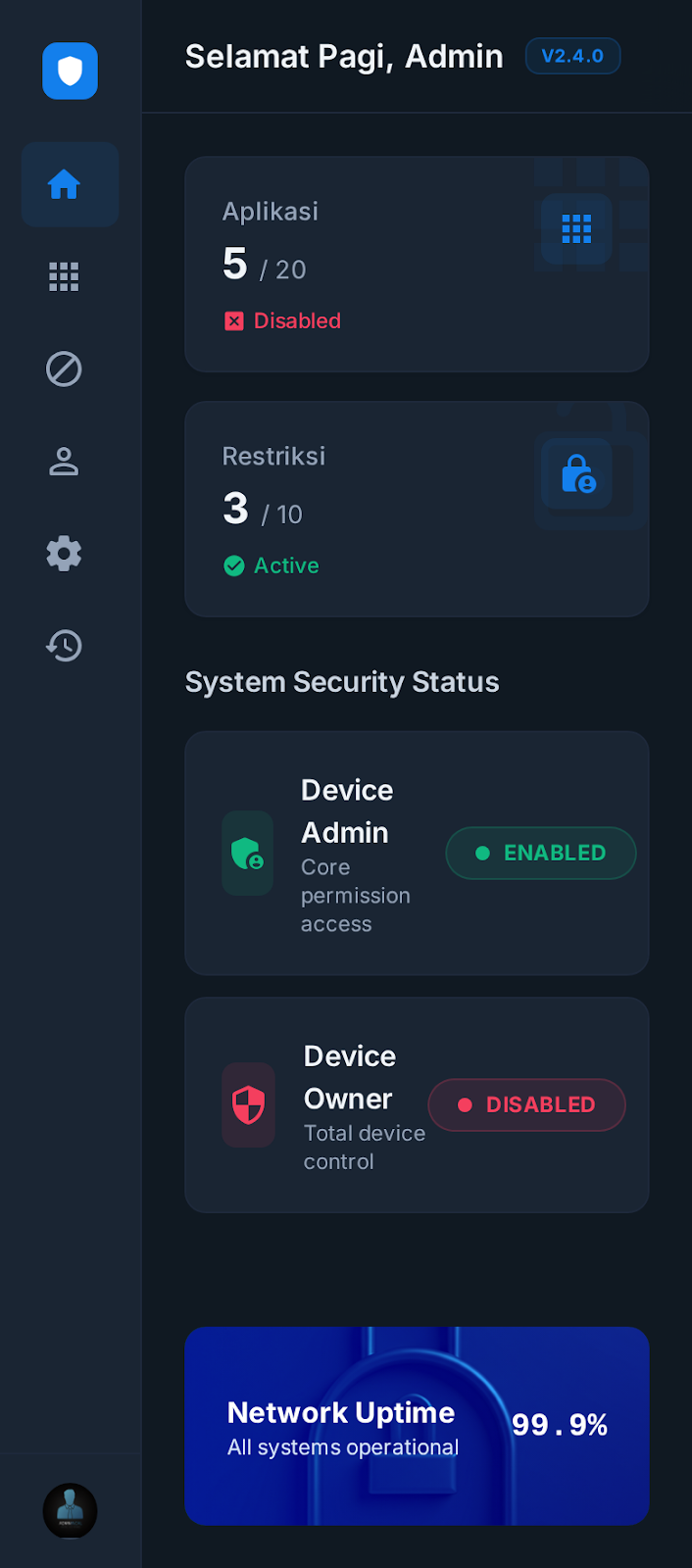
🎉 Installation Successful!
Administrative rights granted! Your device is now in Secured Mode and fully protected.
KONTROL
Full Device Owner